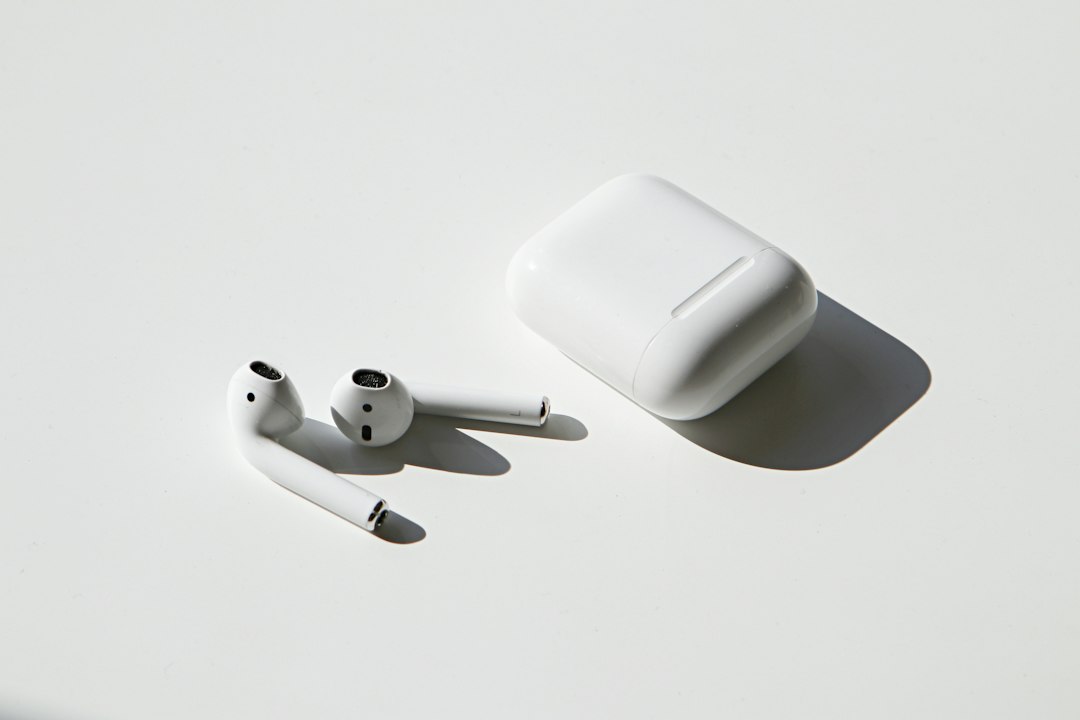
AirPods are easiest to use when the new user learns three basics first: pairing, controls, and charging. Apple says AirPods can pair with an iPhone with a simple setup flow, then work across supported Apple devices signed in with the same Apple Account [source: Apple]. After that, most daily tasks come down to opening the case, placing the earbuds in the ears, and using taps, squeezes, or swipes.
TLDR: AirPods are wireless earbuds that pair quickly, play audio automatically, and offer hands-free controls. A beginner can connect them to an iPhone in about 30 seconds, then use them for music, calls, podcasts, and Siri. For example, a commuter can listen during a 25-minute train ride, answer one call, and still place the earbuds back in the case for extra battery. The main trick is knowing which controls match the exact AirPods model.
1. Pairing AirPods for the First Time
To start, the user should unlock the iPhone and hold the AirPods case nearby. The earbuds should stay inside the case. Then the user opens the lid and waits for the setup card to appear on the screen.
- Tap Connect.
- Follow the on-screen steps.
- Tap Done.
If nothing appears, the user can press and hold the setup button on the back of the case until the light flashes white. Honestly, it feels like this should work every time, but Bluetooth can be fussy. Waiting 10 seconds and trying again often fixes it.
2. Wearing AirPods the Right Way
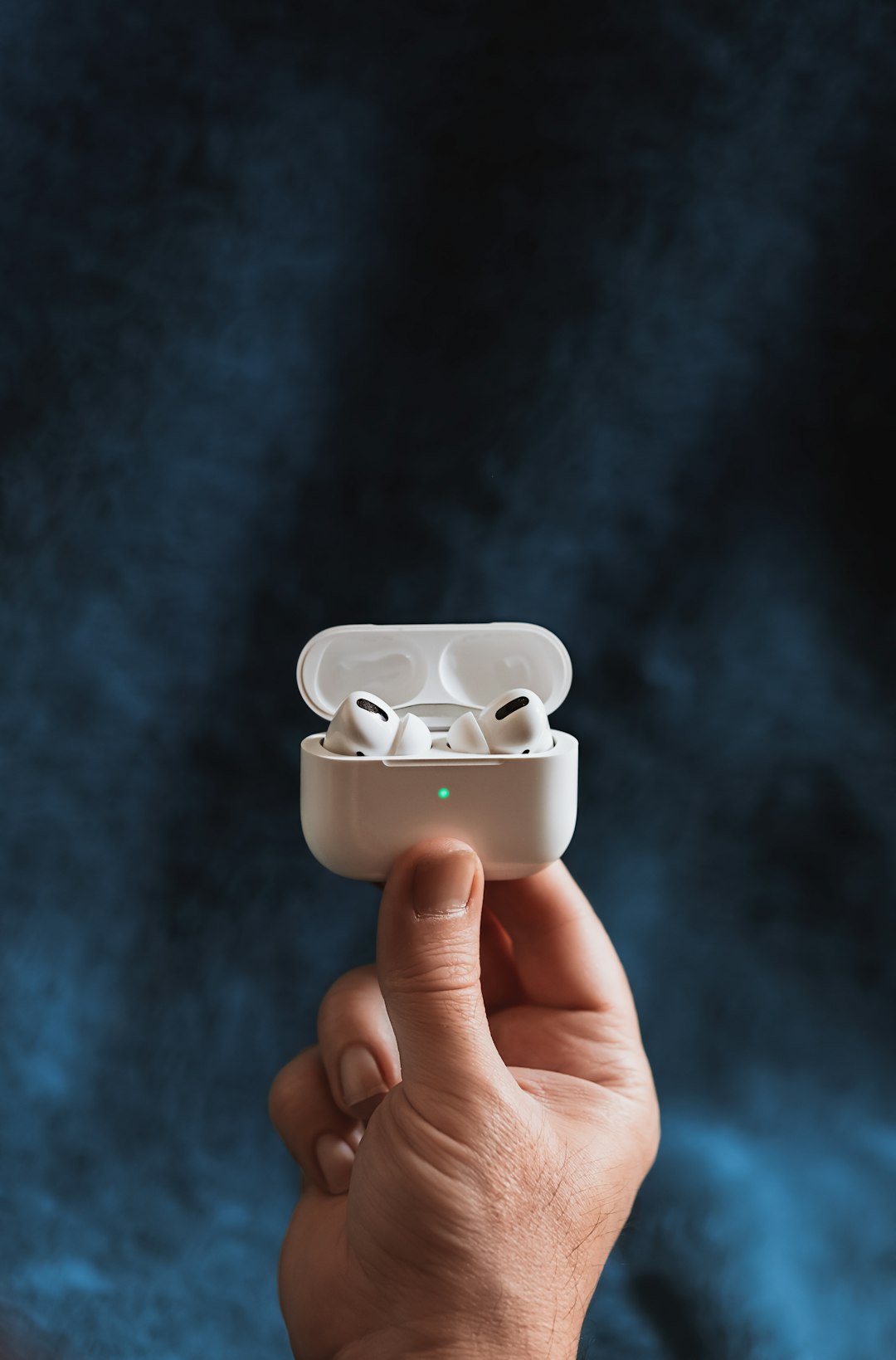
Each earbud is marked with L or R. The user should place each one in the matching ear. Standard AirPods rest in the ear. AirPods Pro use silicone tips that seal the ear canal.
For AirPods Pro, fit matters a lot. A poor seal weakens bass and noise control. If the earbuds feel loose, the user should try another tip size. The right fit should feel secure, but not painful.
3. Playing, Pausing, and Skipping Audio
AirPods can start playing when placed in the ears. They can pause when removed. This feature is called Automatic Ear Detection. It can be changed in Bluetooth settings if needed.
Controls depend on the model:
- AirPods 1 or 2: double-tap an earbud for a chosen action.
- AirPods 3: press the force sensor on the stem.
- AirPods Pro: press the stem to control audio and calls.
- AirPods Pro 2: swipe the stem up or down to change volume.
- AirPods Max: use the Digital Crown for volume and playback.
For many users, the stem press is the most reliable control. One press usually plays or pauses. Two presses skip forward. Three presses go back. It drives people slightly mad when a tap is too soft or too fast, so a firm press works better.

4. Using Siri With AirPods
Siri can help when hands are busy. The user can say “Hey Siri” on supported models. Siri can play a playlist, call a contact, read a message, or raise the volume.
Common examples include:
- “Hey Siri, play my workout playlist.”
- “Hey Siri, call Sam.”
- “Hey Siri, turn the volume down.”
- “Hey Siri, how much battery is left?”
5. Checking Battery Life
The simplest way to check battery life is to open the case near an iPhone. A battery card should appear. It shows the charge for each earbud and the case.
The user can also check battery in the Batteries widget on iPhone or iPad. On a Mac, the battery level appears in the Bluetooth or sound menu. If one earbud drains faster than the other, it may be handling the microphone more often during calls.
6. Charging AirPods
AirPods charge inside their case. The user places both earbuds in the case and closes the lid. The case itself charges with a cable, MagSafe, Qi wireless charger, or Apple Watch charger, depending on the model.
A green light means the case or earbuds are mostly charged. An amber light means they need more power. If the light does not turn on, the case may be fully dead. Charging it for 15 minutes can often bring it back.
7. Switching Between Devices
AirPods can move between Apple devices using the same Apple Account. For example, a user may listen to music on an iPhone, then join a video call on a Mac. When this works, it feels smooth. When it does not, the user can open Bluetooth settings and select the AirPods manually.
On non-Apple devices, the user can pair AirPods like normal Bluetooth earbuds. They may lose some features, such as automatic switching or full Siri support, but audio and calls should still work.
8. Using Noise Control on AirPods Pro and AirPods Max
Some models include Active Noise Cancellation and Transparency mode. Noise Cancellation blocks outside sound. Transparency mode lets outside sound in, which helps when walking, waiting for announcements, or talking to someone.
The user can switch modes by pressing and holding the stem on AirPods Pro. On AirPods Max, the noise control button changes modes.
9. Keeping AirPods Clean
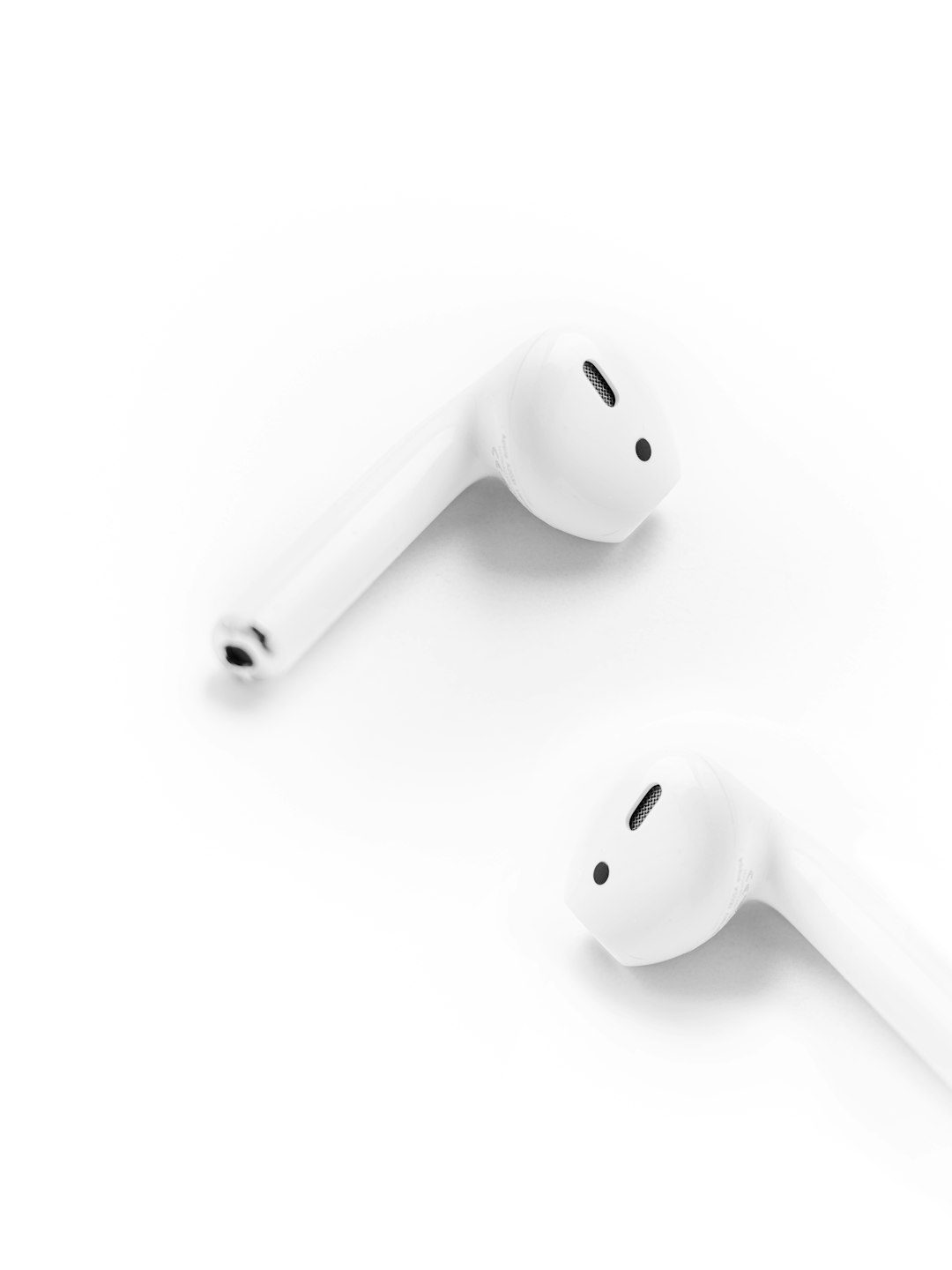
AirPods collect dust, earwax, and pocket lint. The user should wipe them with a soft, dry cloth. A dry cotton swab can clean the speaker mesh gently. Water, soap, and sharp tools should be avoided.
FAQ
- How does a user reset AirPods?
The user places them in the case, opens the lid, and holds the setup button until the light flashes amber, then white. - Can AirPods work with Android?
Yes. They work as Bluetooth earbuds, but some Apple-only features may be missing. - Why is only one AirPod working?
One earbud may be low on battery, dirty, or not seated in the case. The user should charge both and check Bluetooth settings. - Can AirPods be tracked if lost?
Yes, many models can appear in the Find My app, depending on model, battery, and location status. - Should AirPods stay in the case when not used?
Yes. The case protects them and keeps them charged.