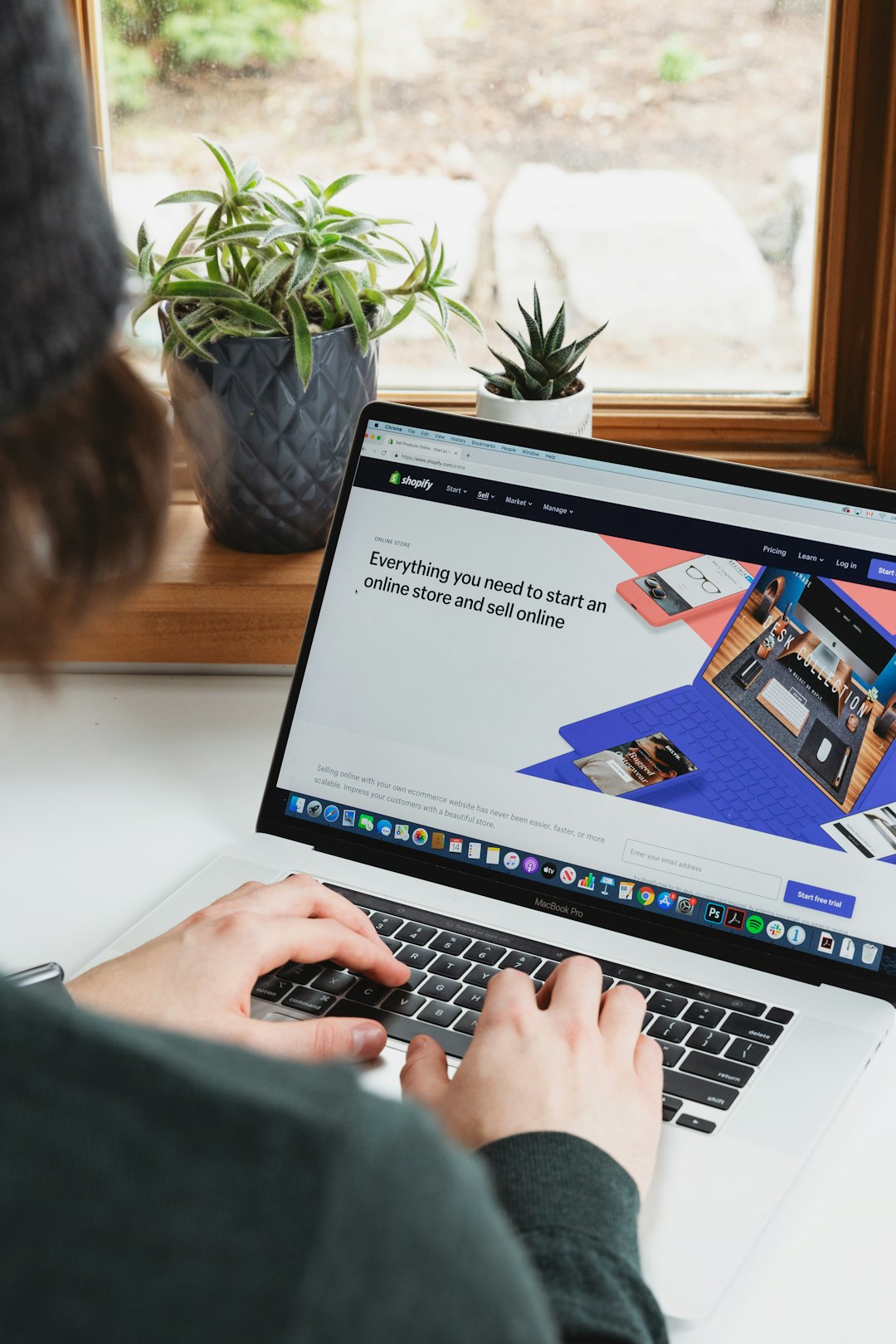
Put your clinic site into Maintenance mode before touching appointment forms, patient workflows, or plugins. A broken booking form can cost real visits, and a sloppy update can expose data that should stay private. Healthcare breaches involving 500 or more people must be reported to the U.S. Department of Health and Human Services, which shows how serious patient data handling can become [source: HHS].
TLDR: The Maintenance plugin for WordPress gives clinics a safer way to pause public access while updates, form edits, and plugin checks are being done. For example, a two-provider clinic can place the site in maintenance mode for 20 minutes while testing its “Book Appointment” form, instead of letting patients submit broken or duplicate requests. If the clinic gets 80 booking visits per day, even a 10% form failure rate could mean eight missed patient contacts. Use Maintenance as a front-door control, not as a full security system.

Why medical clinics need a tighter WordPress routine
Clinic websites are not normal brochure sites. They often include appointment forms, patient intake links, provider pages, insurance details, location tools, and sometimes patient portal buttons. One small plugin conflict can break the path from “I need care” to “appointment confirmed.”
The Maintenance plugin helps by hiding the public site while staff or a webmaster works behind the scenes. Patients see a simple maintenance page instead of half-loaded forms, error messages, or outdated medical instructions. That matters. Trust drops fast when a healthcare site looks messy.
The catch is that WordPress updates do not always fail loudly. Sometimes they fail in quiet, irritating ways. A date picker stops loading. A required phone field no longer validates. A confirmation email takes 12 seconds longer than usual or does not send at all. That is exactly when a maintenance page earns its keep.
How the Maintenance plugin fits clinic workflows
The plugin is useful during planned work, especially when a clinic needs to update form plugins, page builders, theme files, or tracking scripts. Instead of editing live pages while patients are using them, the public site can show a branded message with basic contact details.
A good maintenance screen for a clinic should include:
- Office phone number for urgent booking questions.
- Clinic hours, including lunch closures or holiday changes.
- Emergency notice, such as “Call emergency services for urgent medical needs.”
- Expected return time, if the work is planned.
- A calm message that avoids technical jargon.
You can learn more about the plugin and related setup options at WP Maintenance Mode.
Protect appointment forms during updates
Appointment forms are often the most fragile part of a clinic site. They may connect to email, CRM tools, calendars, spam filters, payment tools, or patient management systems. Change one plugin and the whole chain can wobble.
Before updating anything tied to bookings, turn on Maintenance mode. Then test the form like a real patient would. Use a non-clinic email address. Pick a date. Submit the form. Check the confirmation page. Check the email. Check the admin notification. If the form stores entries in WordPress, confirm that the entry appears correctly.
It drives me crazy when clinics test only the first screen of a form. The real problems often happen after clicking “Submit.” That is where duplicate entries, missing phone numbers, and blank insurance fields show up.

Be careful with patient information
Maintenance mode is not encryption. It does not make patient information safe by itself. It simply limits what the public can see while work is being done. Clinics still need strong hosting, secure logins, backups, SSL, careful form settings, and clear rules for stored data.
If appointment forms collect sensitive details, review what is truly needed. A booking form may only need name, phone number, email, preferred date, and visit reason. Avoid asking for Social Security numbers, full medical histories, or insurance images unless the system is built to handle that data properly.
Also check where form entries go. Are they saved in the WordPress database? Sent by email? Synced to another tool? Email is often the weak spot. A plain email with patient details can spread data into inboxes, phones, backups, and forwarding rules.
Plugin security checks before reopening the site
Once Maintenance mode is active, work through a simple checklist. Keep it boring. Boring is good when patient workflows are involved.
- Update one major plugin at a time, then test the site.
- Check appointment forms on desktop and mobile.
- Confirm SSL is active on every form page.
- Remove unused plugins, especially old form add-ons.
- Review admin users and delete accounts no longer needed.
- Test backups, not just backup schedules.
- Clear cache before final testing.
Do not rush the final check. Open the site in a private browser window. Visit the homepage, provider pages, contact page, booking form, and any links to patient portals. If the maintenance page is still showing, clear cache and confirm the plugin is switched off for public users.
Use clear messages, not cold error screens
A maintenance page should feel human. Patients may be worried, sick, or trying to book quickly during a work break. A cold “Site unavailable” message feels careless.
Try something like this:
“Our website is getting a short update so appointment booking works smoothly. Please call our front desk at 555-0100 if you need help now. If this is a medical emergency, call emergency services.”
That message is simple. It gives patients a next step. It also reduces phone confusion because staff know what patients are seeing.
A practical maintenance schedule
Small clinics should set a monthly WordPress maintenance window. Busy clinics may need one every two weeks. Pick a low-traffic time, such as early morning or after office hours. Tell staff before the site is paused, especially if they answer calls.
Use the Maintenance plugin whenever public access could create confusion. That includes plugin updates, form changes, theme edits, provider page rewrites, and booking system tests. It is a simple step, but it prevents a lot of avoidable mess.
For medical clinics, trust is part of the website. Keep forms working. Keep patient data out of the wrong places. And never let visitors watch while WordPress repairs are still in progress.