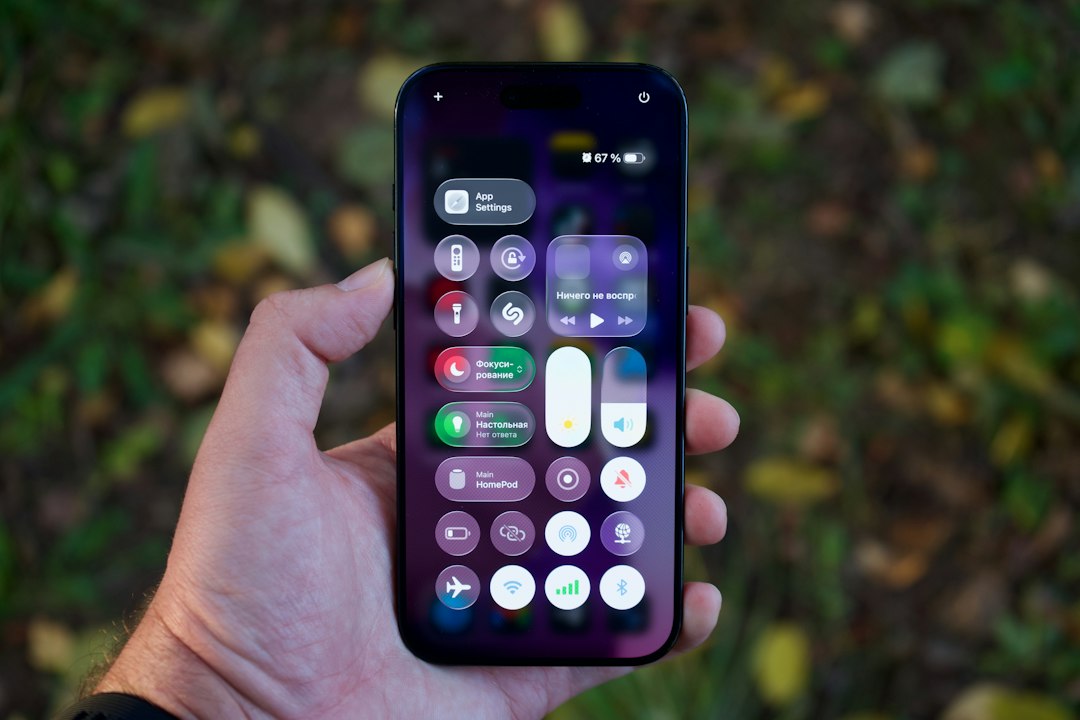
The fastest way to turn off most Liquid Glass effects on an iPhone is to enable Reduce Transparency. Apple says this setting improves contrast by reducing transparency and blur on some backgrounds [source: Apple]. It will not remove every visual effect, but it makes menus, Control Center, widgets, and app panels look flatter and easier to read.
TLDR: Liquid Glass cannot always be fully removed with one switch, but it can be toned down in a few seconds. The main fix is Settings > Accessibility > Display & Text Size > Reduce Transparency. For example, a person who checks Control Center 30 times a day may notice less glare and fewer see-through panels after this change. If motion effects also feel annoying, turning on Reduce Motion can make the iPhone feel calmer too.
How to reduce Liquid Glass effects on iPhone
Liquid Glass is Apple’s glossy visual style. It uses blur, shine, depth, and translucent panels. Some people like the modern look. Others find it distracting. Honestly, it feels like a lot of shine for a small screen when the user only wants to check Wi-Fi or read a notification.
The best place to start is the Accessibility menu. This is where Apple places controls for contrast, motion, and visual clarity.
- Open the Settings app.
- Tap Accessibility.
- Tap Display & Text Size.
- Turn on Reduce Transparency.
This setting makes many interface layers more solid. It can reduce the frosted glass look in Control Center, menus, pop-ups, folders, and some app panels. The result is not plain black and white. It is simply less see-through.
Turn on Increase Contrast
If Liquid Glass still looks too soft, the user should also try Increase Contrast. This option sits in the same area as Reduce Transparency.
- Open Settings.
- Go to Accessibility.
- Choose Display & Text Size.
- Turn on Increase Contrast.
This can make buttons, text, and background separation stronger. It helps when Liquid Glass makes panels blend into wallpaper. It also helps older eyes. It drives people crazy when a button is technically visible, but still takes three seconds longer to spot than it should.
Reduce motion and animation
Liquid Glass is not only about transparency. It can also feel busy because of movement. Menus slide. Controls shift. Panels react with depth. If that feels tiring, Reduce Motion is worth turning on.
- Open Settings.
- Tap Accessibility.
- Tap Motion.
- Turn on Reduce Motion.
The user can also turn on Prefer Cross-Fade Transitions if it appears on the device. This can replace some sliding animations with softer fades. It will not change every Liquid Glass surface, but it can make the iPhone feel less jumpy.
Change the wallpaper for better readability
A busy wallpaper can make Liquid Glass look worse. Bright photos, city lights, neon colors, and high-detail images can show through translucent panels. That makes text harder to read.
A simple wallpaper helps. The best choices are:
- Solid dark colors, such as black, navy, or deep gray.
- Soft gradients with low detail.
- Muted photos with empty space near the top and center.
- Blurred images with no sharp text or patterns.
To change it, the user should open Settings > Wallpaper, then choose a calmer image. This small change can make notifications, widgets, and Lock Screen controls easier to read.
Avoid clear or glass-style icons
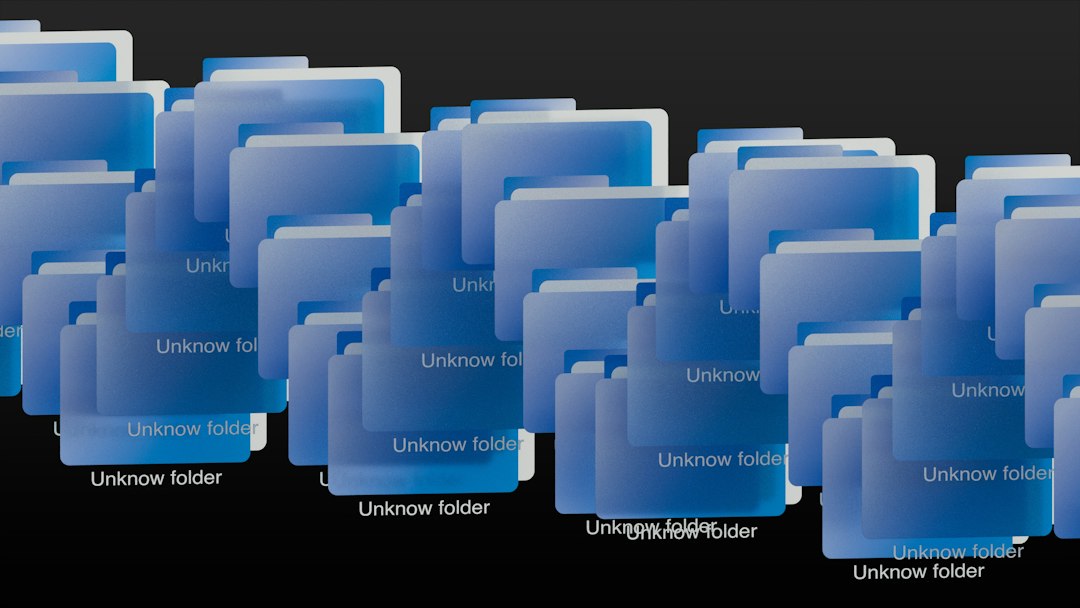
On newer iOS versions, the Home Screen may offer icon styles that look more transparent or glassy. If the user chooses a clear style, Liquid Glass can feel even stronger.
To adjust app icons, the user should press and hold the Home Screen, tap Edit or Customize, then choose a less glossy option if available. A standard, dark, or tinted icon style is usually easier to read than a clear one.
This is not always in the same place on every iPhone. Apple changes Home Screen controls between iOS versions. If the option is missing, the user is probably on a version that does not include that icon style.
Use Dark Mode
Dark Mode can also soften the Liquid Glass look. It does not turn the effect off, but it cuts down on bright glare. For many people, it makes menus feel more stable.
- Open Settings.
- Tap Display & Brightness.
- Select Dark.
The user can also turn on Automatic so the iPhone switches between Light and Dark Mode based on time of day. That is useful for people who like a brighter screen outside but want less glare at night.
Check app settings too
Some apps use their own glass effects. Apple’s system setting may not change every app screen. If an app still looks too glossy, the user should check that app’s settings for display, theme, motion, or appearance controls.
For example, a reader app may offer a plain theme. A weather app may allow reduced animation. A social app may support dark mode even when the system is set to light. These options vary, but they are worth checking.
Can Liquid Glass be fully disabled?
In most cases, not completely. Apple does not always provide a single “Turn Off Liquid Glass” button. The practical fix is to reduce the parts that cause the most trouble: transparency, contrast, motion, wallpaper detail, and icon style.
For most users, this mix works best:
- Reduce Transparency: on
- Increase Contrast: on
- Reduce Motion: on if animations feel tiring
- Dark Mode: on or automatic
- Wallpaper: simple and low detail
FAQ
Does Reduce Transparency turn off Liquid Glass completely?
No. It reduces the glassy look, blur, and see-through panels in many places. Some visual effects may remain.
Will these settings make the iPhone faster?
They may make the phone feel faster because there is less motion and visual noise. They are not a guaranteed speed boost.
Can Liquid Glass be turned off only for Control Center?
Not usually. Reduce Transparency applies across the system, not just one area.
Why does Liquid Glass look worse with some wallpapers?
Bright or detailed wallpapers can show through translucent panels. This lowers contrast and makes text harder to read.
Should Reduce Motion be turned on too?
Yes, if animations feel distracting or tiring. It pairs well with Reduce Transparency for a calmer iPhone screen.