CleanShot X is the best all around Mac screenshot app for most people, while Snagit wins for training content and Shottr is the sharp pick if you want speed without bloat. CleanShot X starts at $29 for one Mac, which puts it in the sweet spot between free utilities and heavier pro tools [source: CleanShot].
TLDR: Pick CleanShot X if you capture, annotate, blur, upload, and share screenshots many times a day. Pick Snagit if you make tutorials, SOPs, or long visual guides; for example, a support team creating 30 process screenshots a week will save time with templates and step tools. Pick Shottr if you want a quick, clean app for scrolling screenshots, pixel measuring, and basic notes. For a solo designer, CleanShot X may cut a 12 click capture and markup flow down to about 4 clicks.

1. CleanShot X: best for daily Mac screenshot work
CleanShot X feels built for people who dislike friction. You can capture a region, window, full screen, scrolling page, or screen recording. Then you can annotate, blur private data, pin shots on screen, or copy a cloud link.
The best part is the flow. Capture, mark up, share. Done. The floating quick access menu saves clicks, and the built in cloud sharing is handy for bug reports, client feedback, and Slack threads.
Best for: product teams, designers, marketers, developers, and anyone who shares visual notes all day.
- Pros: polished UI, fast markup, great blur tool, pinned screenshots, cloud links.
- Cons: paid app, cloud features cost extra after the basic plan, no full Snagit style training suite.
The catch is that CleanShot X can feel almost too packed at first. Expect to spend 10 minutes setting shortcuts and upload choices before it feels perfect.
2. Snagit: best for training, documentation, and polished guides
Snagit is the grown up choice. It is not just for screenshots. It is for explaining work. You get scrolling capture, video recording, callouts, arrows, stamps, step numbers, templates, and a strong editor.
Snagit is excellent when screenshots become formal content. Think onboarding guides, help center articles, software manuals, or internal training docs. Its editor is heavier than CleanShot X, but that extra weight has a purpose.
- Pros: powerful editor, templates, video tools, step by step visual guides.
- Cons: more expensive, slower for quick casual captures, interface can feel busy.
Honestly, it feels like overkill if you only need arrows and blur. But if your job depends on clear instructions, Snagit earns its space.
3. Shottr: best lightweight Mac screenshot app
Shottr is small, fast, and surprisingly capable. It opens quickly and handles scrolling screenshots, text recognition, rulers, pixel tools, blur, and simple annotations.
It is a favorite among developers and designers because it gets out of the way. The app feels like a sharp utility, not a content studio.
- Pros: fast, light, great pixel tools, good scrolling capture, affordable.
- Cons: less polished for team sharing, fewer workflow extras than CleanShot X.
If CleanShot X is the polished daily driver, Shottr is the quick pocket knife.
Image not found in postmeta4. Xnapper: best for pretty social screenshots
Xnapper is made for people who post screenshots online. It adds clean backgrounds, rounded corners, padding, shadows, and automatic redaction. It can turn a plain app capture into a shareable image in seconds.
It is not the strongest tool for deep annotation. That is not its job. It is best for founders, indie hackers, creators, and marketers who want screenshots that look good on X, LinkedIn, blogs, and launch pages.
5. Monosnap: best free friendly cloud capture tool
Monosnap gives you screenshots, video capture, annotations, and cloud uploads. It has been around for years, and it still works well for basic capture and sharing.
The free plan is useful. The paid plans add more storage and team features. Its interface feels less modern than CleanShot X, but it does the job.
- Best for: students, freelancers, testers, and light team use.
- Weak point: not as smooth or refined as the newer Mac first apps.
6. Capto: best for screen recording plus capture
Capto mixes screenshot tools with screen recording and basic video editing. It is useful for tutorials, lectures, and quick walkthroughs.
You can record your screen, trim clips, add notes, and organize captures. The library view is useful if you collect lots of visual material. It is not as slick as CleanShot X for fast sharing, and it is not as complete as Snagit for training content, but it sits in a useful middle zone.
7. macOS Screenshot and Preview: best free built in option
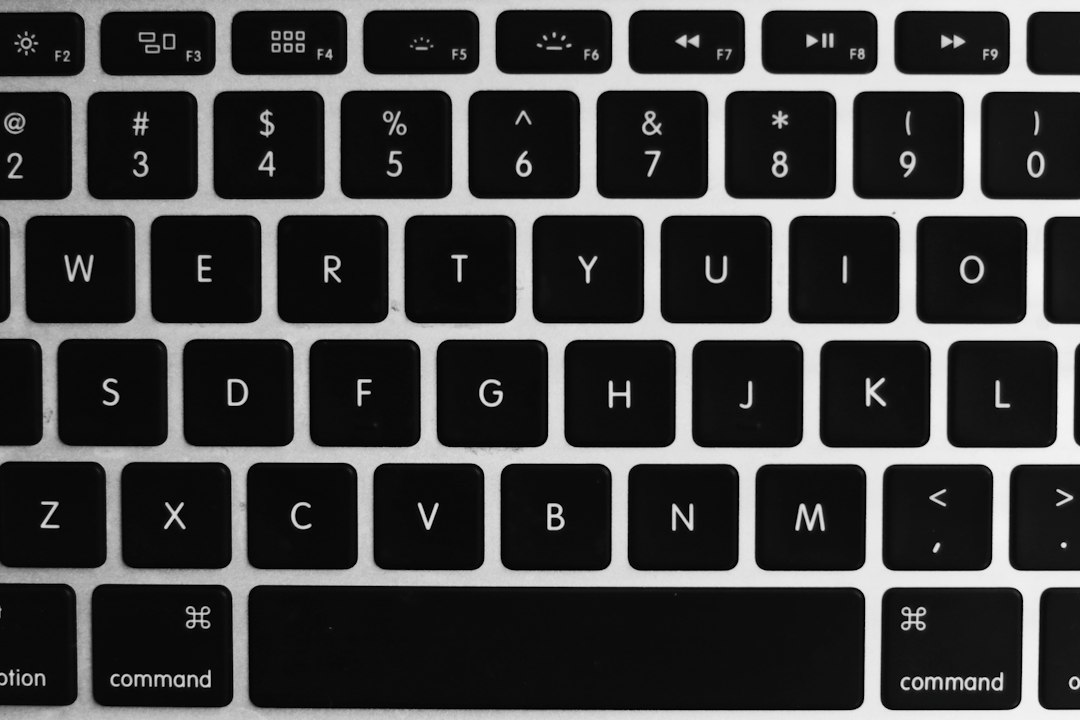
The built in macOS screenshot tool is better than many people think. Press Command Shift 5 to open capture controls, record the screen, choose a save spot, and set a timer. Apple also lists common screenshot shortcuts for full screen, window, and selected area captures [source: Apple].
Preview can add arrows, shapes, text, signatures, and basic crops. It is enough for casual use. It drives me crazy that blur is not as simple as it should be, though. Hiding private data takes more work than it does in CleanShot X or Shottr.
Quick comparison
- Best overall: CleanShot X
- Best for training docs: Snagit
- Best fast lightweight app: Shottr
- Best for social screenshots: Xnapper
- Best free cloud option: Monosnap
- Best capture plus recording mix: Capto
- Best no install choice: macOS Screenshot and Preview
Which one should you choose?
If you capture screenshots all day, choose CleanShot X. It has the best mix of speed, polish, annotation, privacy tools, and sharing. It feels made for modern Mac workflows.
If you write formal guides, choose Snagit. It is slower for quick work, but stronger for repeatable training content. If you want something tiny and fast, choose Shottr. It gives you the tools most people need without turning screenshots into a project.
For many Mac users, the best setup is simple: CleanShot X for daily work, Snagit for documentation, and Shottr as the lightweight backup. That may sound like too much, but the right tool saves small chunks of time all day. Those chunks add up fast.