Finding a printer’s IP address is one of the most common troubleshooting steps when a computer cannot connect to a printer, a print queue stops responding, or a shared office printer needs to be added manually. The IP address identifies the printer on a local network, allowing Windows, macOS, and Linux systems to communicate with it directly.
TLDR: A printer IP address can usually be found from the operating system’s printer settings, the printer’s built-in display, the router’s connected devices list, or a printed network configuration page. On Windows, it is often listed under Printer Properties or Device Information. On Mac, it can be found in Printers & Scanners, while Linux users can check system settings, CUPS, or terminal commands.
Why a Printer IP Address Matters
A printer IP address is a unique network address assigned to a printer connected through Wi-Fi or Ethernet. It allows computers and mobile devices on the same network to locate and send print jobs to the correct device. When a printer’s IP address changes or cannot be detected automatically, print jobs may fail, pause, or remain stuck in the queue.
Knowing the IP address is especially useful when setting up a printer manually, configuring a static IP address, troubleshooting network issues, or using advanced printer management tools. In offices, schools, and shared workspaces, the IP address also helps administrators identify which physical printer belongs to a specific network entry.

How to Look Up a Printer IP Address on Windows
Windows provides several ways to locate a printer’s IP address, depending on the printer driver, connection type, and Windows version.
Method 1: Use Windows Settings
- Open Settings.
- Select Bluetooth & devices, then choose Printers & scanners.
- Select the printer from the list.
- Choose Printer properties or Printer information, depending on the Windows version.
- Look for the IP address under the Ports, Web Services, or Device Information section.
If the printer uses a standard TCP/IP port, the address may appear in the port name or port details. It often looks like 192.168.1.45 or 10.0.0.23.
Method 2: Check Control Panel
On many Windows systems, the classic Control Panel shows printer port details clearly.
- Open Control Panel.
- Go to Devices and Printers.
- Right-click the printer and select Printer Properties.
- Open the Ports tab.
- Find the checked port and review the listed IP address or click Configure Port.
This method is reliable for network printers installed using a TCP/IP port. If the port name is not readable, the Configure Port button usually reveals the actual address.
Method 3: Use Command Prompt
Advanced users may use Command Prompt to view network devices and active connections. The command arp -a displays devices detected on the local network. The printer’s IP address can sometimes be identified by matching the physical address, also called the MAC address, with the address printed on the printer label or configuration page.
How to Look Up a Printer IP Address on Mac
macOS also provides printer information through system settings. The exact labels may vary slightly depending on the macOS version.
Method 1: Use Printers & Scanners
- Open System Settings or System Preferences.
- Select Printers & Scanners.
- Choose the printer from the list.
- Click Options & Supplies or view the printer details panel.
- Look for the location, hostname, or IP address.
Some printers display a hostname instead of an IP address. A hostname such as HP12345.local or printer.local can still help identify the device on the network, but an IP address may be needed for manual setup.
Method 2: Open the Printer Web Page
If macOS shows a printer web page option, selecting it may open the printer’s embedded web server in a browser. The address bar may reveal the IP address, and the printer’s network settings page usually displays full details.

Method 3: Use Terminal
Mac users can also open Terminal and use network commands. The command arp -a lists devices recently detected on the network. Another useful command is lpstat -v, which shows printer destinations and may include IP addresses, hostnames, or connection paths.
How to Look Up a Printer IP Address on Linux
Linux offers both graphical and command-line methods. The best option depends on the desktop environment and whether the system uses CUPS, the Common Unix Printing System.
Method 1: Use System Printer Settings
- Open the system’s Settings application.
- Go to Printers.
- Select the installed printer.
- Open Properties, Details, or Printer Options.
- Review the device URI, location, or connection details.
The printer IP address may appear in a device URI such as ipp://192.168.1.50/ipp/print or socket://192.168.1.50:9100. In these examples, 192.168.1.50 is the printer IP address.
Method 2: Use the CUPS Web Interface
Most Linux distributions use CUPS to manage printing. A user can open a browser and visit http://localhost:631. From there, the Printers section lists installed printers and their connection information. Selecting a printer often reveals the device URI, which may contain the IP address.
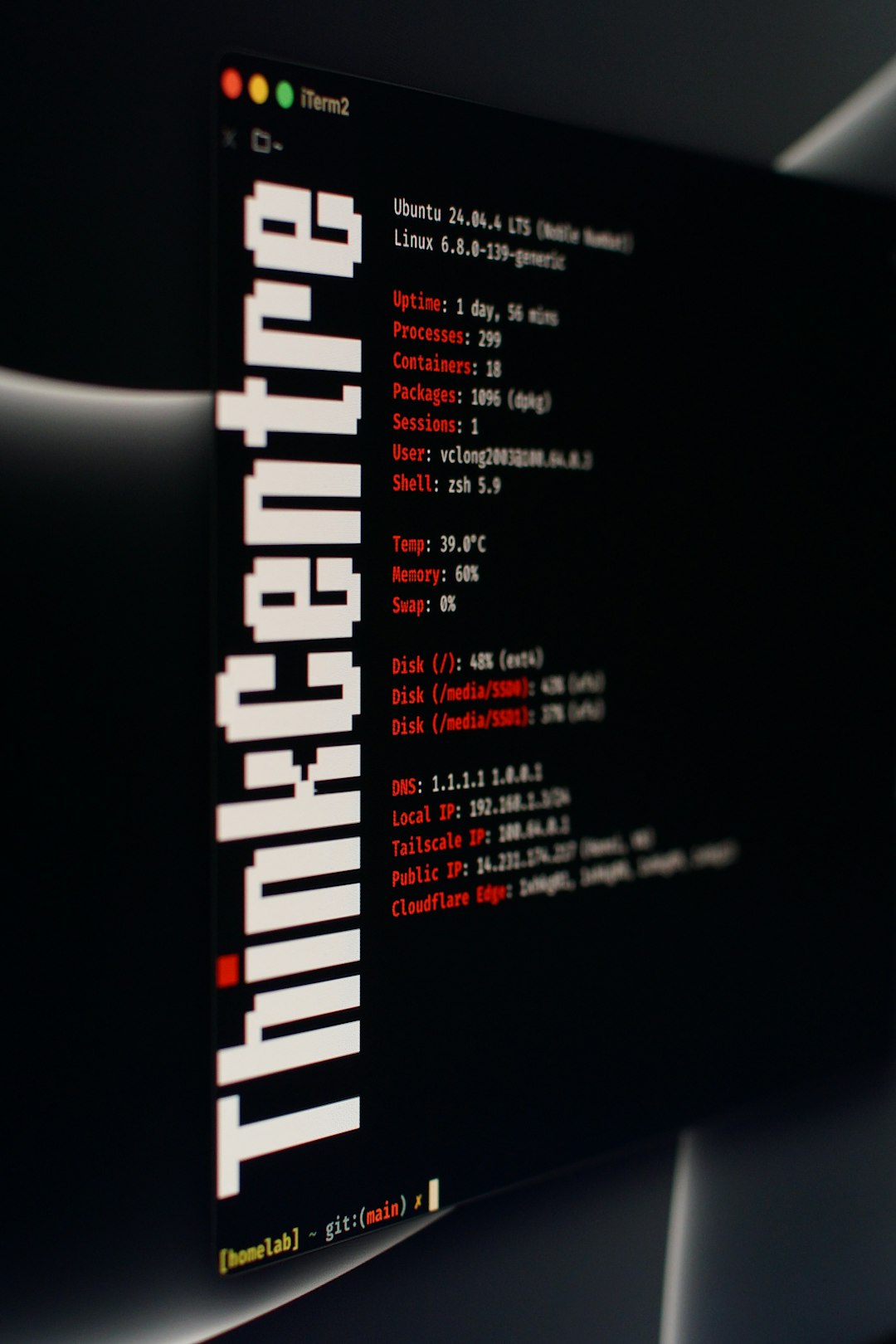
Method 3: Use Terminal Commands
Linux terminal commands are often the fastest way to inspect printer connections. Common options include:
- lpstat -v — displays printer device URIs.
- arp -a — shows known network devices.
- ip neigh — lists neighboring devices on the local network.
- avahi-browse -a — discovers Bonjour and mDNS devices, if Avahi is installed.
When the printer uses IPP, JetDirect, or socket printing, the IP address is usually visible in the connection string.
Other Ways to Find a Printer IP Address
If the operating system does not show the address, several universal methods may help.
- Printer display: Many printers show the IP address under Network, Wi-Fi, TCP/IP, or Wireless Status.
- Network configuration page: Most printers can print a status page that includes the IP address, MAC address, and wireless details.
- Router admin page: The router’s connected devices list may show the printer name and assigned IP address.
- Mobile printer app: Manufacturer apps often display device network information.
Tips for Avoiding Printer IP Problems
Network printers may receive new addresses when a router restarts or when DHCP leases renew. To avoid future connection issues, administrators often assign a static IP address or create a DHCP reservation in the router. This keeps the printer at the same address while allowing the router to manage the network normally.
It is also helpful to label shared printers with their names and locations, especially in offices with several similar models. Keeping printer firmware updated can improve network stability, security, and compatibility with Windows, macOS, and Linux systems.
FAQ
What does a printer IP address look like?
A printer IP address usually looks like 192.168.1.25, 10.0.0.15, or another set of four numbers separated by periods. Some networks may also use IPv6 addresses, which are longer and contain letters and colons.
Can a USB printer have an IP address?
A printer connected only by USB usually does not have its own network IP address. However, if it is shared through another computer or connected to a print server, the sharing device may have an IP address.
Why does the printer IP address keep changing?
The address may change because the router assigns addresses automatically through DHCP. A static IP address or DHCP reservation can help keep the printer at the same address.
Is the printer IP address the same as the printer name?
No. The printer name is a human-readable label, while the IP address is the network location used by computers to reach the device.
Can the printer IP address be found from the router?
Yes. Most routers have a connected devices or DHCP clients page that lists network devices. The printer may appear by brand name, model number, hostname, or MAC address.