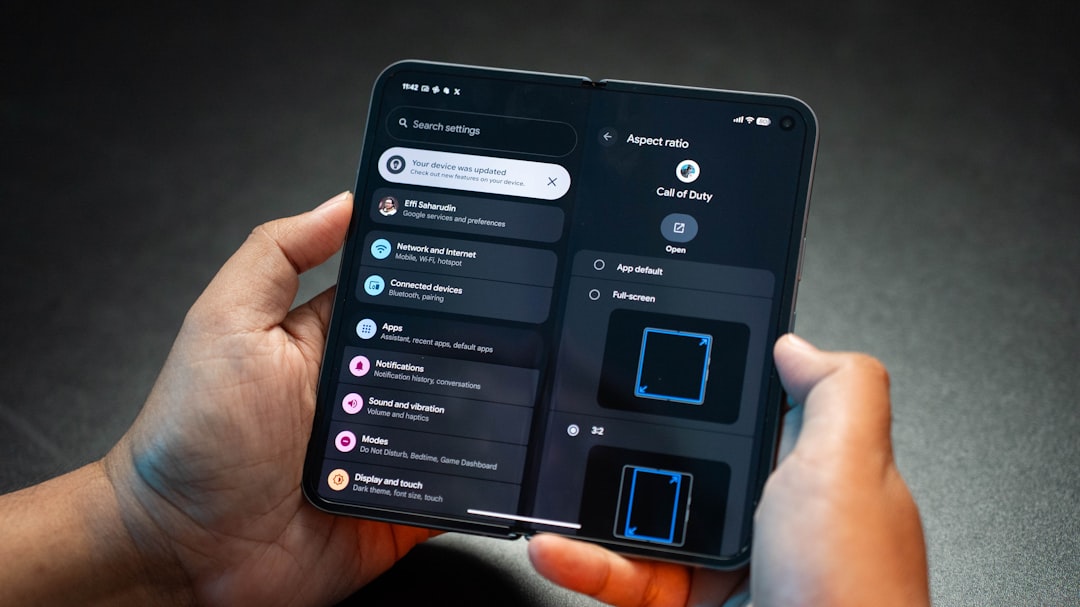
Factory resetting a VR headset is the digital equivalent of giving it a fresh start. Whether your headset is freezing, refusing to pair with controllers, running slowly, or being prepared for resale, a reset can clear software problems and remove personal data. It is a powerful troubleshooting step, but it should be used carefully because it usually erases accounts, downloaded apps, saved settings, and local files.
TLDR: A factory reset restores your VR headset to its original out of box software state. Before resetting, back up anything important, sync game progress if possible, and remove sensitive personal data. You can usually reset a headset from the settings menu, a companion mobile app, or a hardware button combination. Afterward, you will need to set it up again, reconnect Wi Fi, pair controllers, and reinstall apps.
What a Factory Reset Actually Does
A factory reset wipes user data from the headset and restores default system settings. Think of it as clearing the device’s memory of your preferences, accounts, installed apps, Wi Fi networks, guardian or boundary setup, Bluetooth pairings, and locally stored media. It does not usually downgrade the firmware to the exact version it shipped with, but it does return the operating system to a clean state based on the current installed software.
This is different from simply restarting the headset. A restart turns the device off and on again, while a factory reset removes your data. If your VR headset is only acting oddly once in a while, try restarting, updating software, or charging it fully before choosing the reset option.
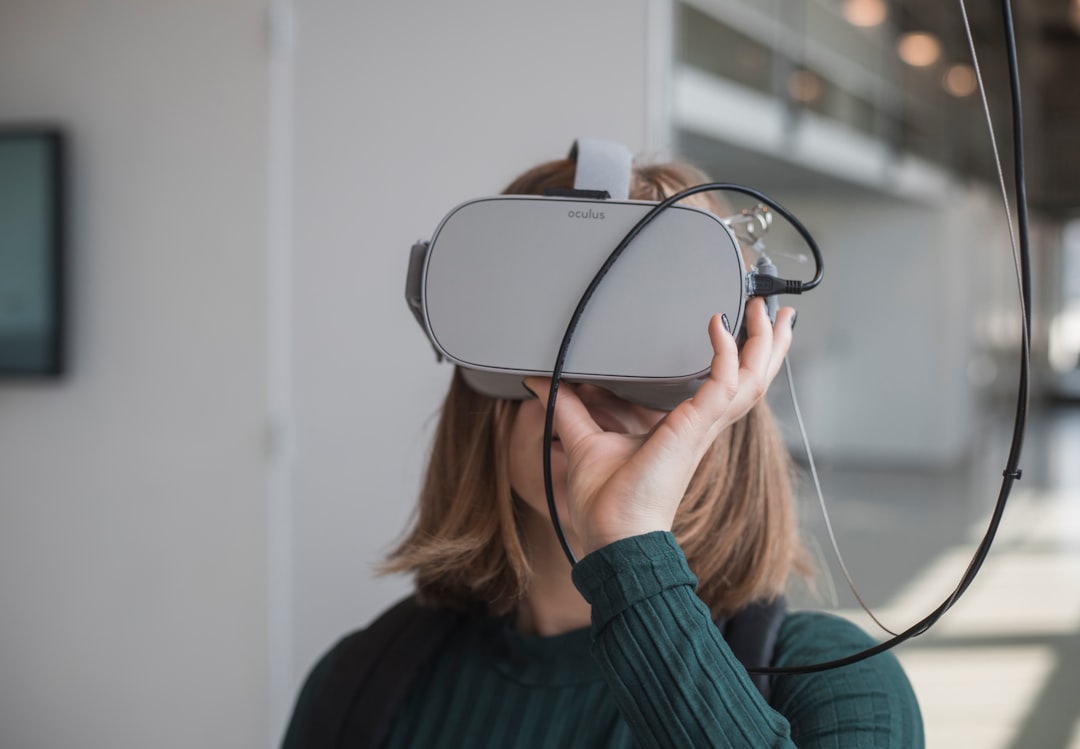
When Should You Factory Reset a VR Headset?
A reset can be useful, but it should not be the first option for every minor issue. Consider performing one in the following situations:
- You are selling or giving away the headset. This prevents the next person from accessing your account, payment information, photos, or apps.
- The headset is stuck in a boot loop. If it keeps restarting or never reaches the home screen, a hardware reset may help.
- Controllers will not pair correctly. If unpairing and re pairing fails, resetting may clear corrupted connection data.
- Performance has become unusually poor. Constant crashes, slow menus, or app launch failures may be caused by damaged system data.
- You want a clean setup. Sometimes users reset after major updates, changing accounts, or moving from shared use to personal use.
Before You Reset: Important Preparation
Before pressing that final confirmation button, take a few minutes to prepare. Factory resets are often irreversible from the headset itself, so it is worth checking what you might lose.
- Back up media. Transfer screenshots, screen recordings, or downloaded files to a computer, phone, or cloud storage if your headset allows it.
- Check cloud saves. Many VR games support cloud backup, but not all do. Open the headset app store or account settings to confirm whether your progress is synced.
- Write down important settings. If you use custom accessibility options, experimental features, or specific network settings, note them before resetting.
- Charge the headset. Aim for at least 50 percent battery, or keep it plugged in if the manufacturer allows resetting while charging.
- Know your login details. After the reset, you will need the account email, password, and possibly two factor authentication.
If you are resetting the headset because you are selling it, also sign out of linked apps where possible and check whether the device must be removed from your account through a web dashboard or mobile app. Some platforms let you unlink devices remotely, which adds another layer of security.
Method 1: Factory Reset from the Settings Menu
The easiest way to reset most VR headsets is through the built in settings menu. The exact wording varies between brands, but the path is usually similar.
- Put on the headset and open the main menu.
- Go to Settings.
- Look for System, Device, Storage, or Advanced Settings.
- Select Factory Reset, Erase All Content, or a similarly named option.
- Read the warning carefully and confirm.
- Wait while the headset erases data and restarts.
Do not turn the headset off during the reset process unless it is clearly frozen for a long time. Interrupting a reset can cause setup problems or force you to use recovery mode.
Method 2: Factory Reset Using a Mobile App
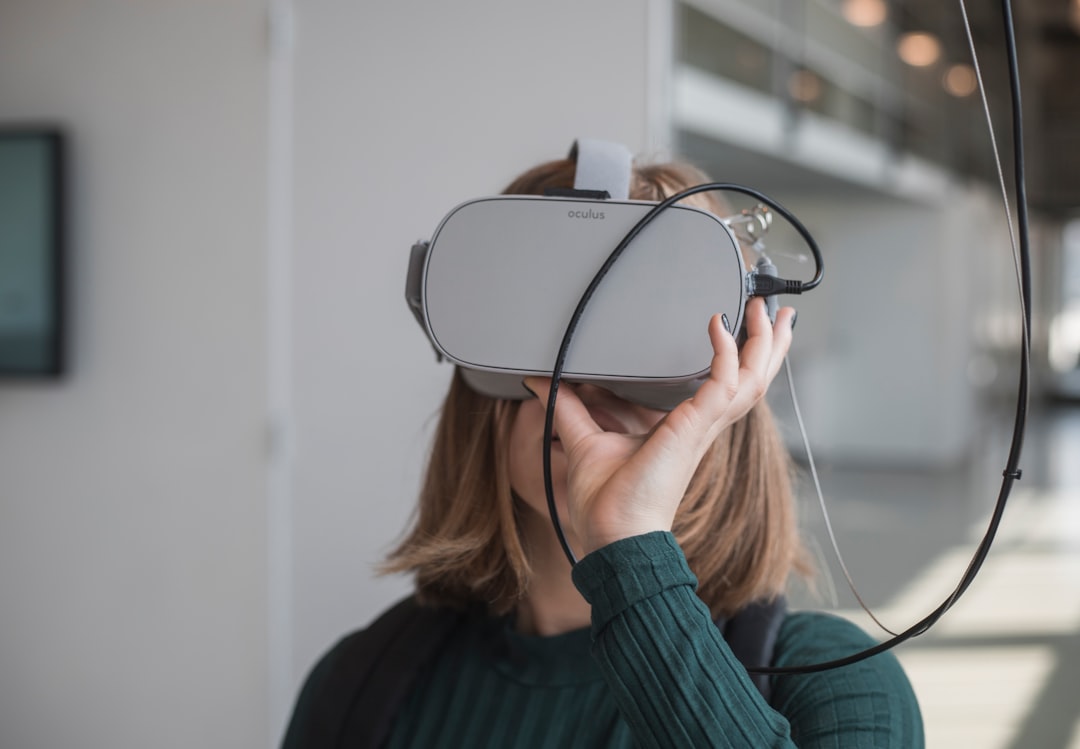
Many standalone VR headsets pair with a companion app on your phone. If your headset still appears in the app, you may be able to reset it without navigating inside VR. This is helpful if the headset display is glitching, the interface is difficult to access, or you are managing a device for someone else.
In general, open the companion app, choose your headset from the device list, then look for Headset Settings, Advanced Settings, or More Options. If a factory reset option is available, tap it and confirm. The headset may need to be powered on, nearby, and connected to the same account.
If the app cannot find the headset, make sure Bluetooth is enabled on your phone and that the headset has enough battery. If it still does not appear, use the hardware button method instead.
Method 3: Factory Reset with Hardware Buttons
If the headset will not boot properly or the menus are inaccessible, most models include a recovery mode triggered by holding physical buttons. The exact combination differs by manufacturer, so check the official support page for your headset. A common pattern is:
- Turn the headset completely off.
- Hold the power button and a volume button at the same time.
- Release the buttons when a recovery or boot menu appears.
- Use the volume buttons to navigate to Factory Reset or Wipe Data.
- Press the power button to select it.
- Confirm the reset and wait for the device to restart.
This method is powerful because it works even when the normal operating system is not loading. However, it is also easy to select the wrong option if you rush. Read each screen carefully, especially if the menu uses technical terms like bootloader, recovery, or wipe.
What to Do After the Reset
Once the headset restarts, it should behave like a new device. You will likely see the first time setup screen, including language selection, Wi Fi connection, account login, safety instructions, and boundary setup. Take your time here; a careful setup can prevent frustration later.
- Reconnect to Wi Fi and allow system updates to install.
- Pair your controllers and replace controller batteries if tracking is unreliable.
- Reinstall your apps from your library or store account.
- Restore cloud saves by launching supported games while connected to the internet.
- Recreate your play area in a well lit, obstacle free space.
Troubleshooting Reset Problems
If the reset fails or the headset becomes stuck, do not panic. First, charge it for at least 30 minutes and try holding the power button for a long forced shutdown. Then restart it normally. If it returns to the same error screen, repeat the hardware reset method and make sure you confirm the wipe option fully.
If you still cannot complete the reset, the issue may be hardware related or tied to corrupted firmware. In that case, contact the manufacturer’s support team. Provide the model name, serial number if available, what you tried, and any error messages shown on screen. This makes support faster and prevents repeating steps unnecessarily.
Final Thoughts
A factory reset is one of the most effective ways to fix stubborn VR headset issues, protect your privacy before selling, or start again with a clean configuration. The key is to prepare first: back up files, confirm cloud saves, charge the device, and know your account credentials. Used thoughtfully, a reset can turn a frustrating headset back into a smooth gateway to immersive worlds.