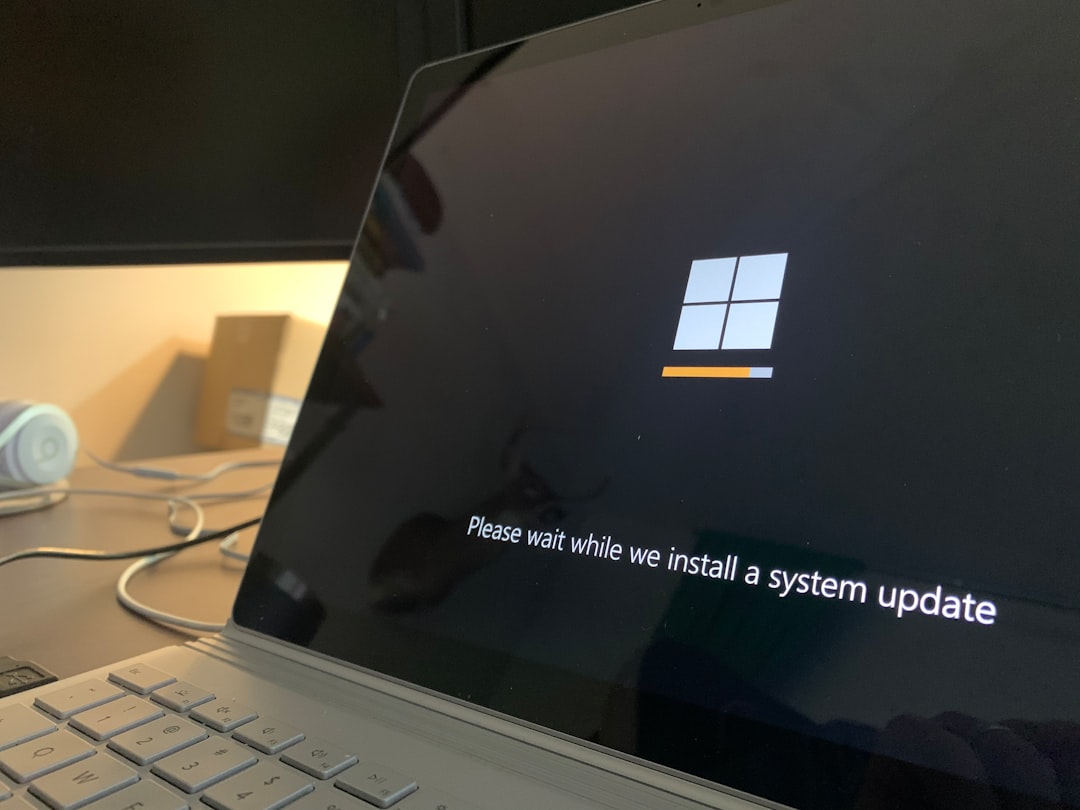
Seeing “File Not Found: OneDriveStandaloneUpdater.exe” can feel like Windows just dropped a tiny banana peel in your day. The message looks scary. But most of the time, it means OneDrive’s updater is missing, broken, or being called from an old shortcut. Good news: this is usually easy to fix.
TLDR: This error means Windows is trying to run the OneDrive updater, but the file is not where it should be. Restart your PC first, then reset or reinstall OneDrive. Do not download the file from random websites. If the message keeps coming back, remove broken startup entries or repair Windows files.
What is OneDriveStandaloneUpdater.exe?
OneDriveStandaloneUpdater.exe is a small updater file used by Microsoft OneDrive. Its job is simple. It checks for updates. It helps OneDrive stay fresh, stable, and less cranky.
When Windows says the file is not found, it usually means one of these things happened:
- OneDrive was updated, but an old shortcut stayed behind.
- OneDrive was removed or damaged.
- A cleanup tool deleted the updater file.
- Antivirus software quarantined it by mistake.
- A startup task is pointing to the wrong place.
Think of it like your PC trying to call a friend who moved house. The friend is not gone forever. Windows just has the old address.
Step 1: Restart your computer
Yes, it is the classic answer. And yes, it often works. A restart clears stuck processes and refreshes startup tasks.
- Save your work.
- Click Start.
- Click the Power button.
- Choose Restart.
After the restart, wait a minute. If the error does not return, great. You win the tiny tech battle.
Step 2: Check if OneDrive is still installed
Before fixing the updater, check if OneDrive is actually on your PC.
- Click Start.
- Type OneDrive.
- Look for the OneDrive app.
If OneDrive opens, the core app is still there. If nothing appears, OneDrive may be missing. That means reinstalling it is the best move.
You can also check in Settings:
- Press Windows + I.
- Go to Apps.
- Open Installed apps.
- Search for Microsoft OneDrive.
If you see it, continue to the reset step. If not, jump to the reinstall step.
Step 3: Reset OneDrive
Resetting OneDrive is like giving it a fresh cup of coffee. It does not delete your cloud files. It only refreshes the app settings and sync engine.
Here is how to reset it:
- Press Windows + R.
- Copy and paste this command:
%localappdata%\Microsoft\OneDrive\onedrive.exe /reset
- Press Enter.
OneDrive may disappear from the taskbar for a short time. That is normal. Give it a minute.
If it does not come back, open the Run box again with Windows + R. Then paste this:
%localappdata%\Microsoft\OneDrive\onedrive.exe
Press Enter. OneDrive should launch again.

Step 4: Reinstall OneDrive
If resetting does not help, reinstall OneDrive. This is often the cleanest fix. It replaces missing files, including the updater.
First, uninstall OneDrive:
- Press Windows + I.
- Go to Apps.
- Select Installed apps.
- Find Microsoft OneDrive.
- Click the three dots.
- Choose Uninstall.
Now reinstall it:
- Open your browser.
- Go to the official Microsoft OneDrive download page.
- Download the installer.
- Run it.
- Sign in with your Microsoft account.
Important: Do not download OneDriveStandaloneUpdater.exe from random file sites. That is risky. Some sites wrap files in malware. Some offer old versions. Some are just digital raccoons in a trench coat.
Step 5: Disable broken startup entries
Sometimes OneDrive is fine, but Windows still tries to run an old updater path. That can happen after an update or uninstall.
Check Startup apps first:
- Press Ctrl + Shift + Esc.
- Open Task Manager.
- Click Startup apps.
- Look for any strange OneDrive updater entry.
- If it looks broken, select it.
- Click Disable.
Do not disable normal OneDrive unless you do not want it to start with Windows. The goal is to remove the ghost updater, not the whole cloud buddy.
Step 6: Check Task Scheduler
Windows may also run OneDrive updates through a scheduled task. If that task points to a missing file, the error can pop up again and again.
- Click Start.
- Type Task Scheduler.
- Open it.
- Look in Task Scheduler Library.
- Search for tasks with OneDrive in the name.
If you find a task that points to a missing OneDriveStandaloneUpdater.exe, you can disable it. Be careful. If you are not sure, take a screenshot first. Or ask someone who likes fixing computers more than eating snacks.
Step 7: Run Windows Update
OneDrive and Windows are close friends. Updating Windows can fix missing components and app issues.
- Press Windows + I.
- Open Windows Update.
- Click Check for updates.
- Install anything available.
- Restart your PC.
This step is boring. But boring fixes are sometimes the best fixes.
Step 8: Repair system files
If the error keeps returning, Windows files may be damaged. You can run a built-in repair tool.
- Click Start.
- Type Command Prompt.
- Right-click it.
- Choose Run as administrator.
Type this command and press Enter:
sfc /scannow
Wait for it to finish. It may take several minutes. If it finds problems, let it repair them. Then restart your computer.
You can also run this command after that:
DISM /Online /Cleanup-Image /RestoreHealth
This checks the Windows image. In plain English, it helps Windows fix itself.
Step 9: Check antivirus quarantine
If OneDrive was working and suddenly broke, your antivirus may have quarantined the updater. Open your security app. Look for a section called Quarantine, Protection history, or Blocked items.
If you see OneDrive files there, check the details. Only restore them if they came from the normal Microsoft OneDrive folder. If you are unsure, reinstall OneDrive instead. It is safer.
Will this delete my OneDrive files?
Usually, no. Resetting or reinstalling OneDrive does not delete files stored in the cloud. Your local sync folder should also stay in place. Still, it is smart to check your files at onedrive.com before big changes.
If OneDrive asks you to sign in again, that is normal. It may also recheck your files. This can take time. Let it do its little cloud dance.
Final tip
The best fix for “File Not Found: OneDriveStandaloneUpdater.exe” is usually a reset or reinstall of OneDrive. If the error is caused by an old startup task, disable that task. Keep Windows updated. Avoid shady download sites.
Once fixed, OneDrive should return to quietly syncing your files in the background. No drama. No missing updater. Just happy little clouds doing their job.