Use Ezgif for quick browser-based MP4 to GIF conversion, FFmpeg for the best control, and ScreenToGif if you work on Windows. Most GIFs work best when they are short, trimmed, and resized before export; GIPHY recommends GIFs under 6 seconds and accepts uploads up to 15 seconds [source: GIPHY]. That one rule will save you more time than any tool choice.
TLDR: If you need a free MP4 to GIF tool right now, use Ezgif for speed, FFmpeg for privacy and compression, or ScreenToGif for Windows editing. For example, a 7-second 720p product clip can often be turned into a cleaner GIF by trimming it to 4 seconds and lowering the width to 600 pixels. Expect GIF files to get large fast, sometimes several times bigger than the MP4. The best workflow is simple: trim first, resize second, then reduce colors or frame rate.
Why MP4 to GIF Conversion Is Still Useful
MP4 is better for quality, sound, and file size. GIF is better for quick looping visuals that play almost anywhere. That is why people still convert MP4 clips into GIFs for support tickets, product updates, memes, tutorials, chat replies, and bug reports.
The problem is that GIF is an old format. It has no audio. It uses limited colors. It can balloon in size for no obvious reason. Honestly, it feels like magic in the worst way when a 3 MB MP4 turns into a 25 MB GIF after one careless export.
The right free converter helps you avoid that mess. It should offer trimming, resizing, frame-rate control, and file-size previews. Bonus points if it does not slap a watermark on your file.
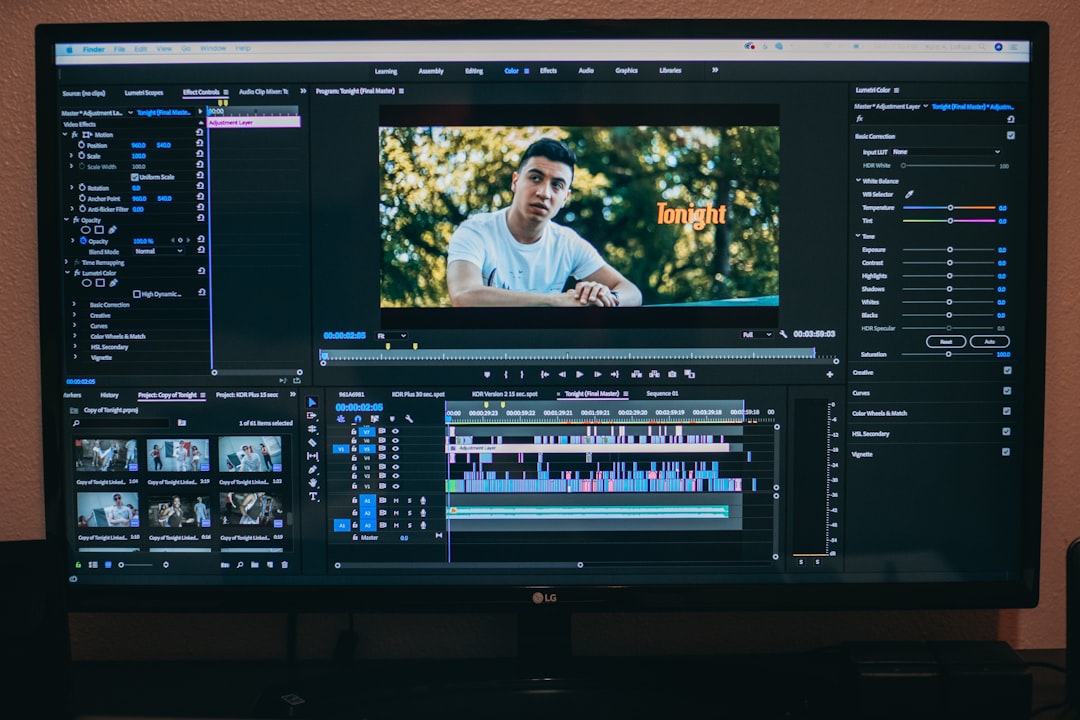
Best Free MP4 to GIF Tools Compared
| Tool | Best For | Main Strength | Main Annoyance |
|---|---|---|---|
| Ezgif | Fast web conversion | Simple trimming and resizing | Interface looks dated |
| FFmpeg | Power users | Excellent control and privacy | Command line learning curve |
| ScreenToGif | Windows users | Great frame editing | Windows only |
| Gifski | High-quality GIF output | Smooth color handling | Better on macOS than other systems |
| CloudConvert | Cloud conversion | Clean settings panel | Free usage limits |
| Convertio | Beginners | Very easy uploads | Limited advanced GIF controls |
1. Ezgif: Best Free Choice for Most People
Ezgif is the tool to try first. It runs in the browser, needs no signup for basic use, and gives you the controls that matter: start time, end time, size, frame rate, and optimization.
The site is not pretty. It looks like it missed the last ten years of web design. Still, it works. Upload an MP4, select the clip range, choose a frame rate, and export. Then run the result through the optimizer if the file is too large.
Best settings to try:
- Length: 3 to 6 seconds
- Width: 480 to 720 pixels
- Frame rate: 10 to 15 fps
- Optimization: lossy GIF compression if size matters
Use Ezgif for social snippets, help docs, UI demos, and quick meme clips. It is not the fastest with large files, but for normal short clips it is hard to beat.
2. FFmpeg: Best for Control, Privacy, and Repeat Work
FFmpeg is free, open source, and local. Your video does not leave your computer. That alone makes it the best option for confidential demos, client files, unreleased products, and internal training clips.
The catch is that FFmpeg uses commands. That scares people off. But one reusable command can do more than many web tools.
ffmpeg -i input.mp4 -vf "fps=12,scale=600:-1:flags=lanczos" output.gifThis command creates a GIF at 12 frames per second and 600 pixels wide. You can also create a better color palette for cleaner output:
ffmpeg -i input.mp4 -vf "fps=12,scale=600:-1:flags=lanczos,palettegen" palette.png
ffmpeg -i input.mp4 -i palette.png -filter_complex "fps=12,scale=600:-1:flags=lanczos[x];[x][1:v]paletteuse" output.gif
That looks nerdy because it is. But the result is often sharper, smaller, and more consistent than basic online conversion.
3. ScreenToGif: Best Free Windows App
ScreenToGif is a favorite for Windows users because it does more than convert. It records your screen, imports video, edits frames, removes duplicate frames, adds text, and exports GIFs.
This is especially useful for software teams. Say a tester records a 12-second MP4 showing a bug. In ScreenToGif, they can remove the dead frames, crop the browser tabs, add a red arrow, and export a smaller GIF for a ticket.
It drives me crazy that some converters force you to start over after one bad export. ScreenToGif avoids that. You can tweak frames and export again without rebuilding the whole project.
Best for: tutorials, bug reports, app demos, and step-by-step UI clips.
4. Gifski: Best for Smooth, High-Quality GIFs
Gifski focuses on quality. It is especially good when your GIF has gradients, motion, shadows, or interface animations that look ugly in cheaper converters.
It uses smart color handling to reduce banding and flicker. That matters for polished marketing GIFs and product showcases. The downside is speed. High-quality output takes longer, and large clips can become heavy fast.
If your GIF needs to look clean, use Gifski. If it just needs to explain a quick click path, Ezgif or ScreenToGif is faster.
5. CloudConvert: Best Cloud Tool with Clean Settings
CloudConvert has a polished interface and clear conversion settings. You can adjust resolution, frame rate, and file handling without guessing too much. It is a good choice when you want something cleaner than Ezgif but still browser based.
The free plan has limits, so it is not ideal for batch work. Still, for a few GIFs per week, it feels smooth. Upload the MP4, pick GIF, adjust settings, and export.
Use it when ease matters more than deep editing.
6. Convertio: Easiest for Beginners
Convertio is simple. Upload MP4, choose GIF, convert, download. That is the whole appeal.
It is best for users who do not care about fine controls. If you need a quick reaction GIF from a small clip, it works. If you need exact timing, cropping, reduced file size, or frame cleanup, you may outgrow it in minutes.
Expect to waste time on second attempts if your first GIF comes out too large. Convertio is friendly, but not the best tool for tuning.
How to Get Smaller GIFs Without Ruining Quality
File size is the main pain point. A GIF has to store many frames, and it does not compress motion like MP4. Use these fixes before blaming the converter:
- Trim hard: Cut pauses, loading screens, and mouse wandering.
- Resize: A 500 pixel wide GIF is often enough for docs and chat.
- Lower frame rate: Try 10 or 12 fps instead of 24 or 30.
- Crop the frame: Show only the area that matters.
- Reduce colors: Fewer colors usually mean a smaller file.
- Avoid full-screen video: Big scenes with motion create massive GIFs.
Which Tool Should You Pick?
- Pick Ezgif if you want the best all-around free web converter.
- Pick FFmpeg if you care about privacy, automation, and exact control.
- Pick ScreenToGif if you use Windows and need editing tools.
- Pick Gifski if visual quality matters most.
- Pick CloudConvert if you want a clean browser tool with simple settings.
- Pick Convertio if you want the least complicated option.
Final Recommendation
For most people, Ezgif is the best free MP4 to GIF converter. It is fast enough, flexible enough, and easy to understand after one try. For work files or repeated conversions, FFmpeg is the smarter long-term pick. For Windows users who need to edit frames, ScreenToGif is the hidden gem.
The best tool still cannot rescue a bad source clip. Keep it short. Crop the boring parts. Lower the frame rate. Then export. Your GIF will look better, load faster, and annoy fewer people in group chat.