If you publish videos on YouTube and place them on a website, blog, course page, landing page, or online store, you are already using embedding. Advanced embedding in YouTube Studio refers to the settings and techniques that give creators more control over where a video can appear, how viewers interact with it, and how embedded playback contributes to performance. It is not always a single button labeled “Advanced Embedding”; instead, it is a combination of YouTube Studio permissions, privacy choices, player options, and analytics.
TLDR: Advanced embedding helps you control how YouTube videos appear and perform when placed outside YouTube, such as on your website or in an online course. For example, a fitness coach might embed a private workout video on a members-only page and use YouTube Studio analytics to see that 42% of watch time came from that page. The feature works through embed permissions, privacy settings, video player code, and traffic source tracking. It is useful for creators, educators, marketers, and businesses that want more control than a simple share link provides.
What Does “Advanced Embedding” Actually Mean?
Basic embedding is simple: you click Share under a YouTube video, choose Embed, copy the iframe code, and paste it into a webpage. Advanced embedding goes a step further. It involves deciding whether your video can be embedded, where it should be embedded, what privacy level it should use, and how you will measure its results.
In YouTube Studio, the most important control is the Allow embedding option. If embedding is enabled, websites can display your video using YouTube’s player. If it is disabled, viewers may still watch the video on YouTube, but external websites cannot play it successfully through an embed.
For many creators, this setting is enough. But businesses, educators, and publishers often need more. They may want to embed unlisted training videos, prevent videos from appearing on unwanted websites, or compare website views against YouTube search views. That is where advanced embedding becomes valuable.

How It Works in YouTube Studio
Advanced embedding starts with the video’s settings inside YouTube Studio. When you upload or edit a video, YouTube Studio allows you to manage visibility, audience, licensing, comments, monetization, and embedding behavior. These settings determine how the embedded player behaves outside YouTube.
- Visibility: Public videos can be found and embedded widely, while unlisted videos can be embedded but are not searchable on YouTube.
- Embedding permission: The Allow embedding checkbox decides whether websites can display the video using YouTube’s player.
- Age restrictions: Age-restricted content may not play normally in all embedded environments.
- Copyright and claims: Videos with certain claims may have limited playback or monetization depending on the rights holder’s rules.
- Monetization settings: Ads may appear in embedded videos if the video and channel are eligible.
Once embedding is allowed, YouTube generates an iframe code. This code is a small HTML snippet that loads the YouTube player on another page. The website does not host the video itself; it simply displays YouTube’s player and streams the video from YouTube’s servers.
The Role of the Embed Code
The embed code is the technical bridge between YouTube and your website. A typical iframe includes the video URL, width, height, and permissions such as fullscreen playback. Website owners can adjust parts of this code to fit their page design and user experience.
For example, a site owner may change the player size, make the video responsive on mobile devices, or add approved YouTube player parameters. Some parameters can influence playback behavior, such as whether controls are visible or whether the video starts at a specific time. However, YouTube limits what can be changed so that the player remains secure, consistent, and compliant with platform rules.
Important: Advanced embedding does not mean you can fully redesign the YouTube player or remove all YouTube branding. It means you can configure the video experience within the boundaries YouTube allows.
Why Creators Use Advanced Embedding
Embedding is especially powerful because it lets a video live in the right context. A product demo on a sales page, a tutorial inside a help center, or a lecture in a learning portal can perform better than the same video sitting alone on YouTube.
Creators and organizations use advanced embedding to:
- Increase engagement: Visitors can watch without leaving the page.
- Support marketing funnels: Videos can be placed beside signup forms, pricing tables, or product descriptions.
- Deliver private content: Unlisted videos can be embedded inside member areas or client portals.
- Improve learning experiences: Teachers can embed lessons directly into course modules.
- Track external performance: YouTube Analytics can show how much traffic comes from external websites.
Privacy: Public, Unlisted, and Private Videos
Privacy settings are a key part of advanced embedding. A public video can appear in search results, on your channel, and on external websites if embedding is enabled. An unlisted video does not appear in YouTube search or on your public channel page, but anyone with the link or an embedded page can watch it. A private video is restricted to specific Google accounts and generally is not suitable for normal website embedding.
For many business use cases, unlisted is the most practical option. For example, a company may create an onboarding video for new clients and embed it on a hidden support page. The video is not publicly searchable, but clients can still access it easily from the page.
However, unlisted does not mean completely secure. If someone copies the video URL, they may be able to share it. For highly confidential content, a dedicated secure video platform may be better than YouTube embedding.
Can You Control Which Websites Embed Your Videos?
For most standard YouTube creators, the main control is whether embedding is allowed or disabled. Some content owners, especially those using advanced rights management tools, may have access to stricter domain-level controls. These can limit playback to approved websites, but they are not available to every channel.
If you do not have domain restriction tools, you can still reduce unwanted embedding by disabling embedding entirely. The downside is that your own website will also lose the ability to display the video through the YouTube player. This is why many creators leave embedding enabled unless they have a clear reason to block it.
How Embedded Views Show Up in Analytics
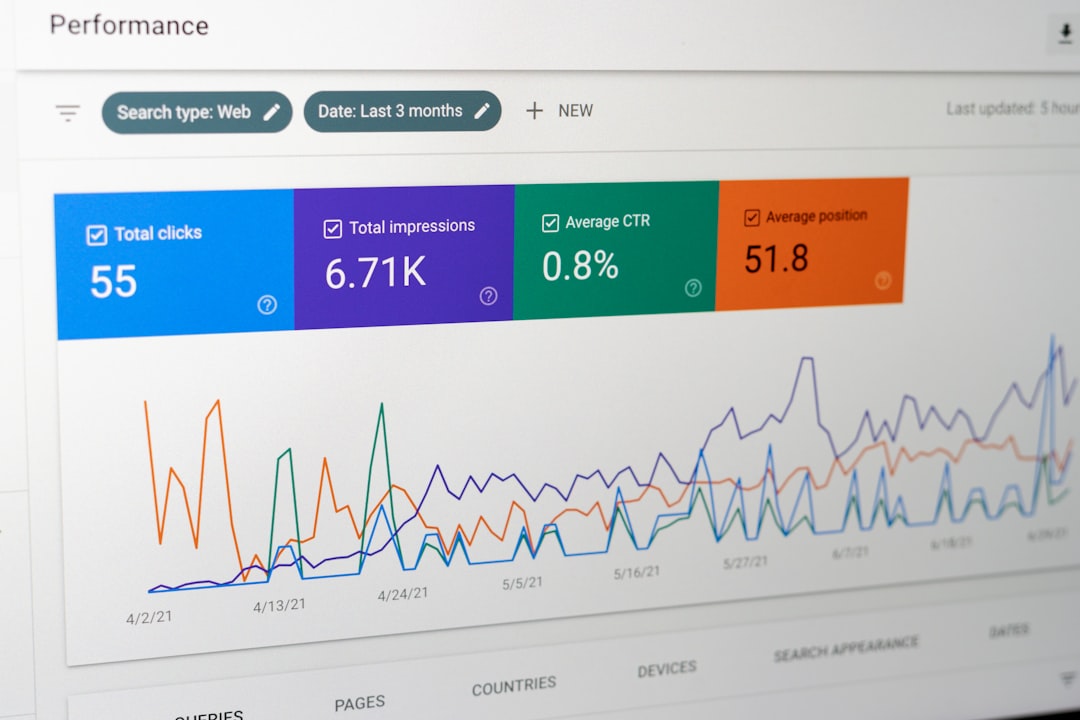
YouTube Studio analytics helps you understand whether embedded videos are working. In the Analytics area, traffic sources can show views from External websites and apps. This can include your own website, news articles, blogs, social platforms, or other pages where the video was embedded or linked.
These numbers can reveal useful patterns. Suppose a software company embeds a tutorial on a help article. After 30 days, the video receives 8,000 views, and analytics shows that 55% came from the help center, while only 18% came from YouTube search. That tells the company the video is doing its most important job: helping existing users at the exact moment they need guidance.
Watch time, retention, click-through behavior, and audience geography can also help you refine your embedded strategy. If viewers leave after 20 seconds, the video may need a clearer opening. If embedded viewers watch longer than YouTube homepage viewers, your website context may be highly effective.
Best Practices for Advanced Embedding
- Keep videos relevant to the page. A video should support the surrounding content, not interrupt it.
- Use strong introductions. Embedded viewers often decide quickly whether to keep watching.
- Make the player responsive. Your embed should look good on phones, tablets, and desktops.
- Check permissions before publishing. Confirm that Allow embedding is enabled when needed.
- Monitor analytics regularly. Compare external traffic with YouTube traffic to see where your audience is most engaged.
- Avoid misleading placement. Do not embed videos in a way that tricks users into clicking or watching.
Common Problems and How to Fix Them
If an embedded video does not play, the cause is often simple. Embedding may be disabled, the video may be private, or a copyright restriction may affect playback. In some cases, the website’s content security settings can also block iframe content.
If you see an error message, first check the video inside YouTube Studio. Make sure the video is not private, confirm that embedding is allowed, and review any copyright or age restriction notices. Then test the embed code on a basic page to see whether the problem is with YouTube settings or the website itself.
Is Advanced Embedding Worth Using?
Yes, especially if video is part of your marketing, education, support, or sales strategy. Advanced embedding gives you more control over distribution while still using YouTube’s reliable hosting and familiar player. It can turn a simple video into a useful on-page experience that supports a specific goal.
The key is to think beyond “Where can I paste this video?” and ask, “What should this embedded video accomplish?” If the answer is to teach, convert, support, or engage, then advanced embedding in YouTube Studio can become a practical and powerful part of your content workflow.